Providing Support Access to Your Space
Last updated: August 8, 2024
In order to provide better support, we recommend that you provide Nacelle’s support account with access to your organization's space within the dashboard. This allows support to access your products, collections, and settings in real-time; allowing for a more seamless experience when requesting support.
v1 Users
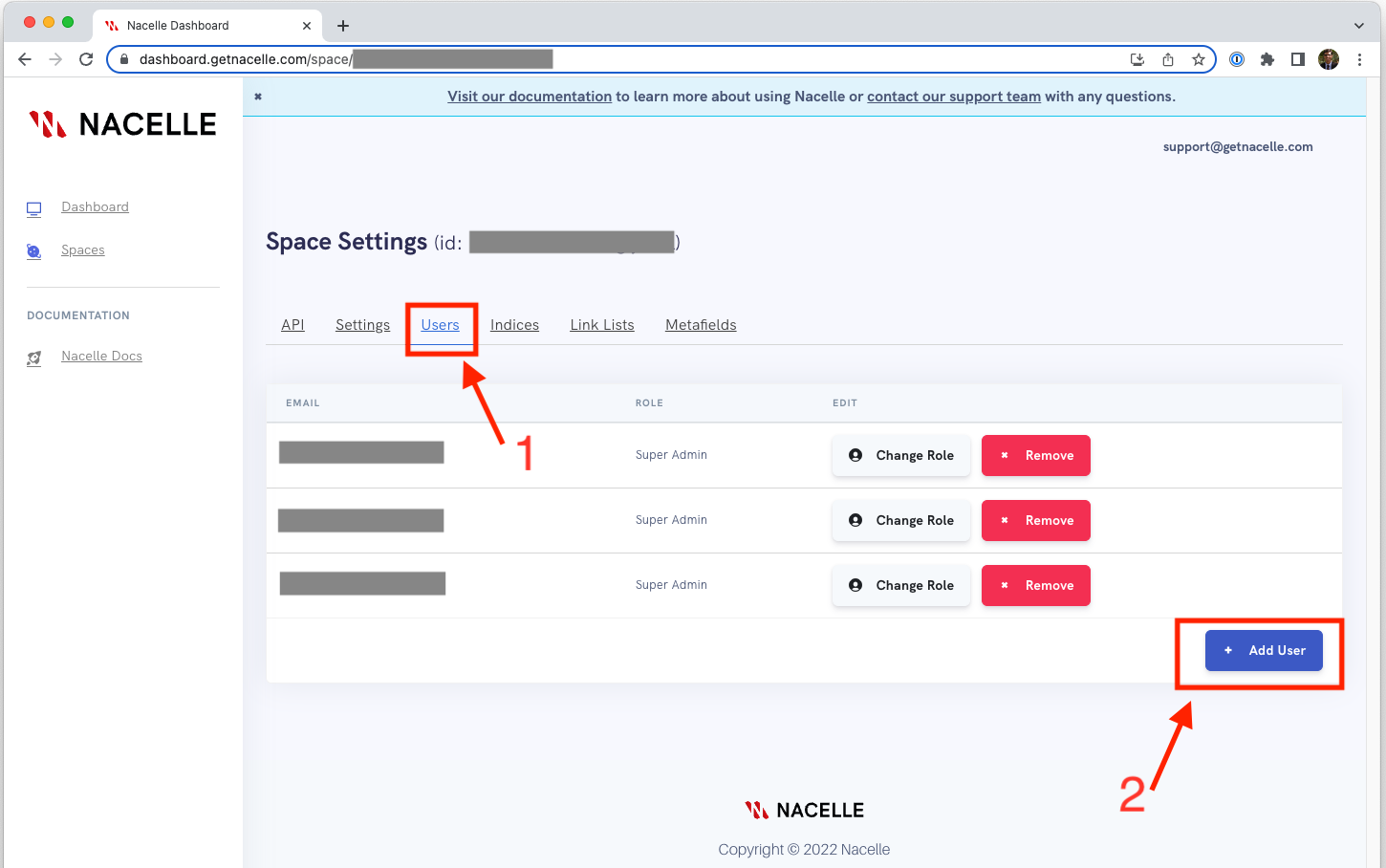
Start by logging into your Nacelle dashboard, and navigating to the appropriate space.
Select the “Users” tab.
Click on the “Add User” button.
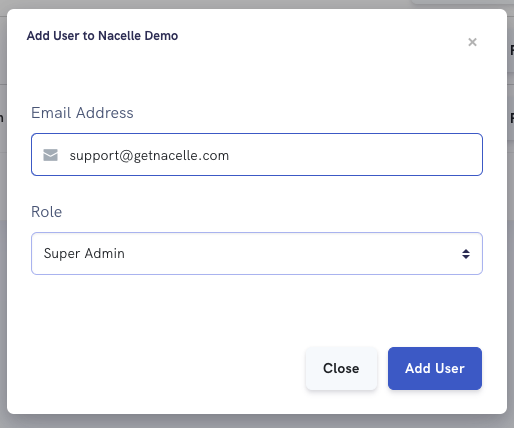
Enter the email address: support@getnacelle.com
For the role, select “Super Admin,” and save.
v2 Users
Start by logging into your Nacelle dashboard, and navigating to the appropriate space.
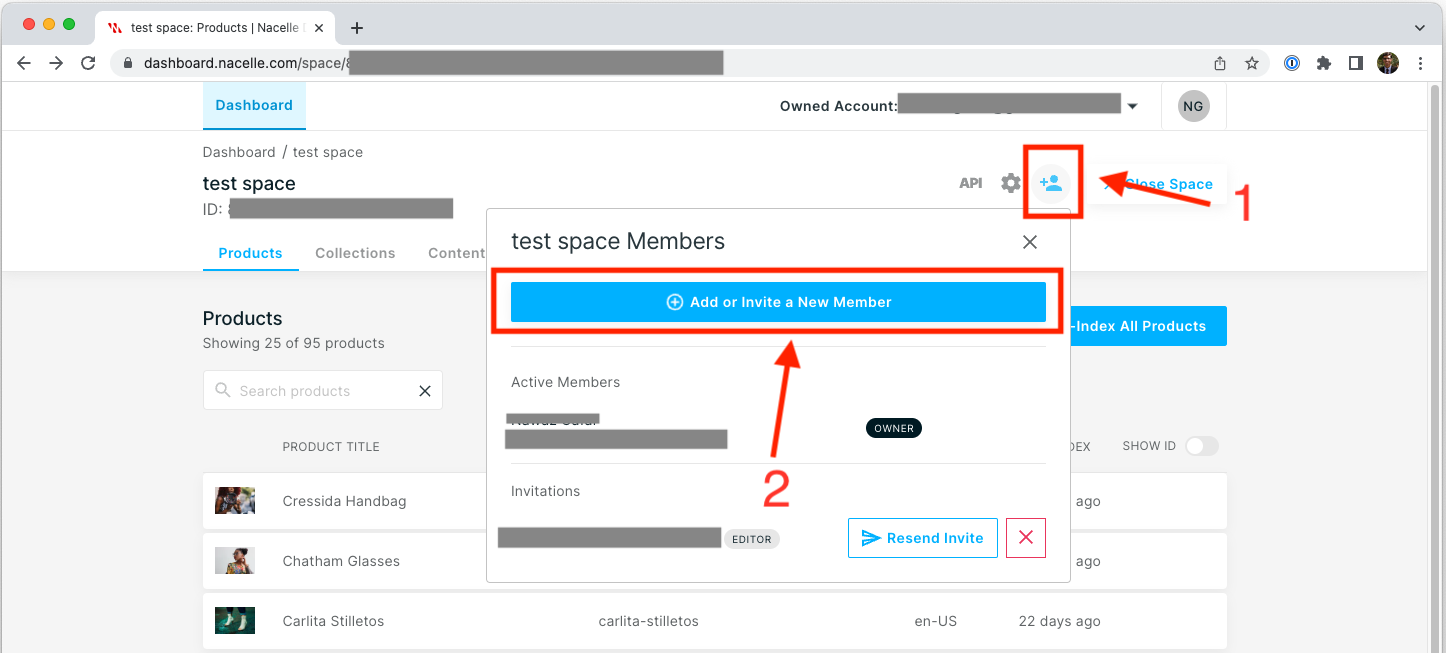
Click on the “add members” icon located on the upper right hand corner (it’s an icon of a person with a plus sign).
Select “Add or Invite a New Member.”
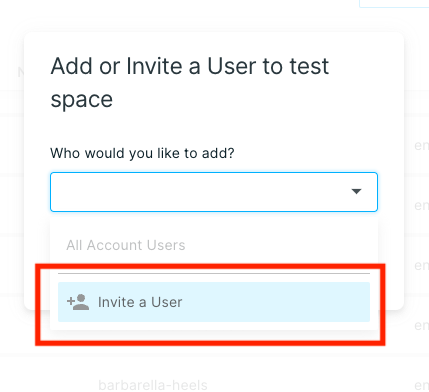
Next, select “Invite a User” from the dropdown menu.
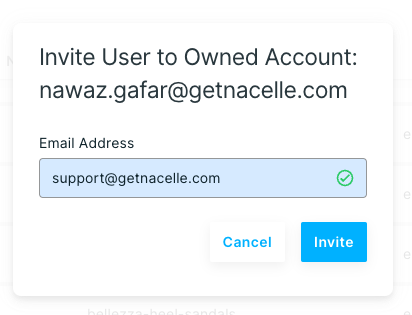
Enter the email address: support@getnacelle.com
Click “Invite.”