How Do I Add Nacelle to My Contentful Space?
Last updated: May 9, 2024
Create an API token
An API Key must be created to allow Nacelle to communicate with Contentful. To do so, click on the Settings dropdown, followed by the API Keys link.
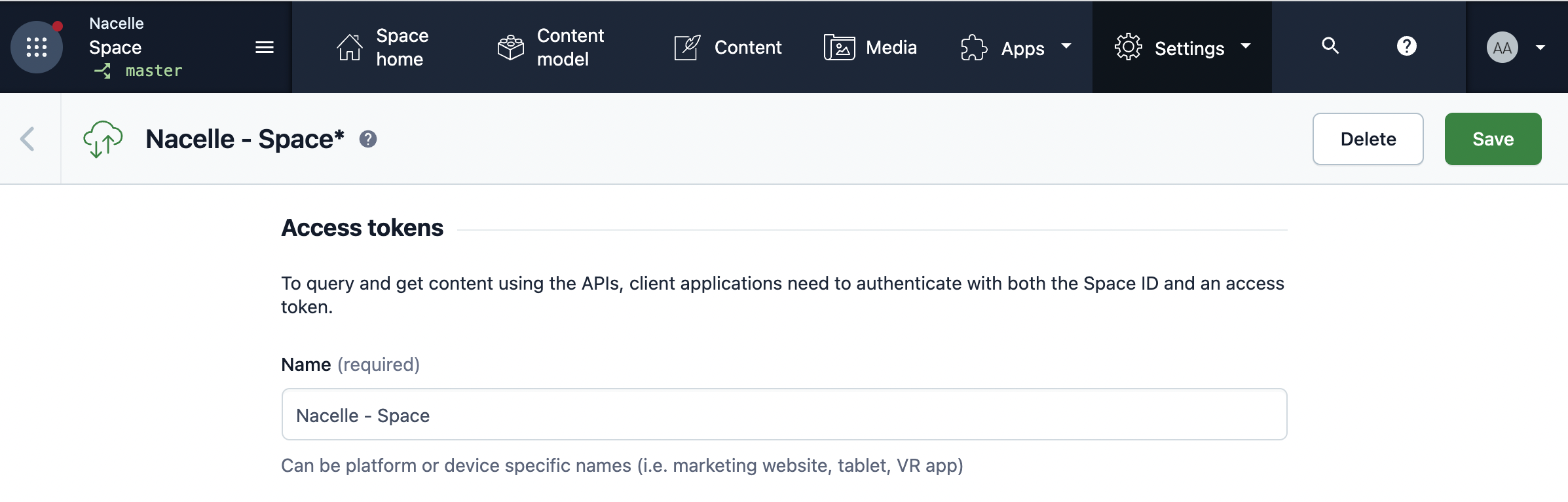
Give your key any name you would like, such as "Nacelle". Select the environments to connect the key to. Before leaving, please note the Space ID and the Content Delivery API Access Token. These will be needed later.
Nacelle Setup
You can just head over to the Nacelle Dashboard and log in.
Connector Setup
You can just head over to the Nacelle Dashboard and log in. From the dashboard home:
Click the settings icon for the space where you want to add the connector.

Then, select the "Data Connectors" tab and click the Add Connector button in the top right of the UI.

From the modal, select "Contentful" in the dropdown.
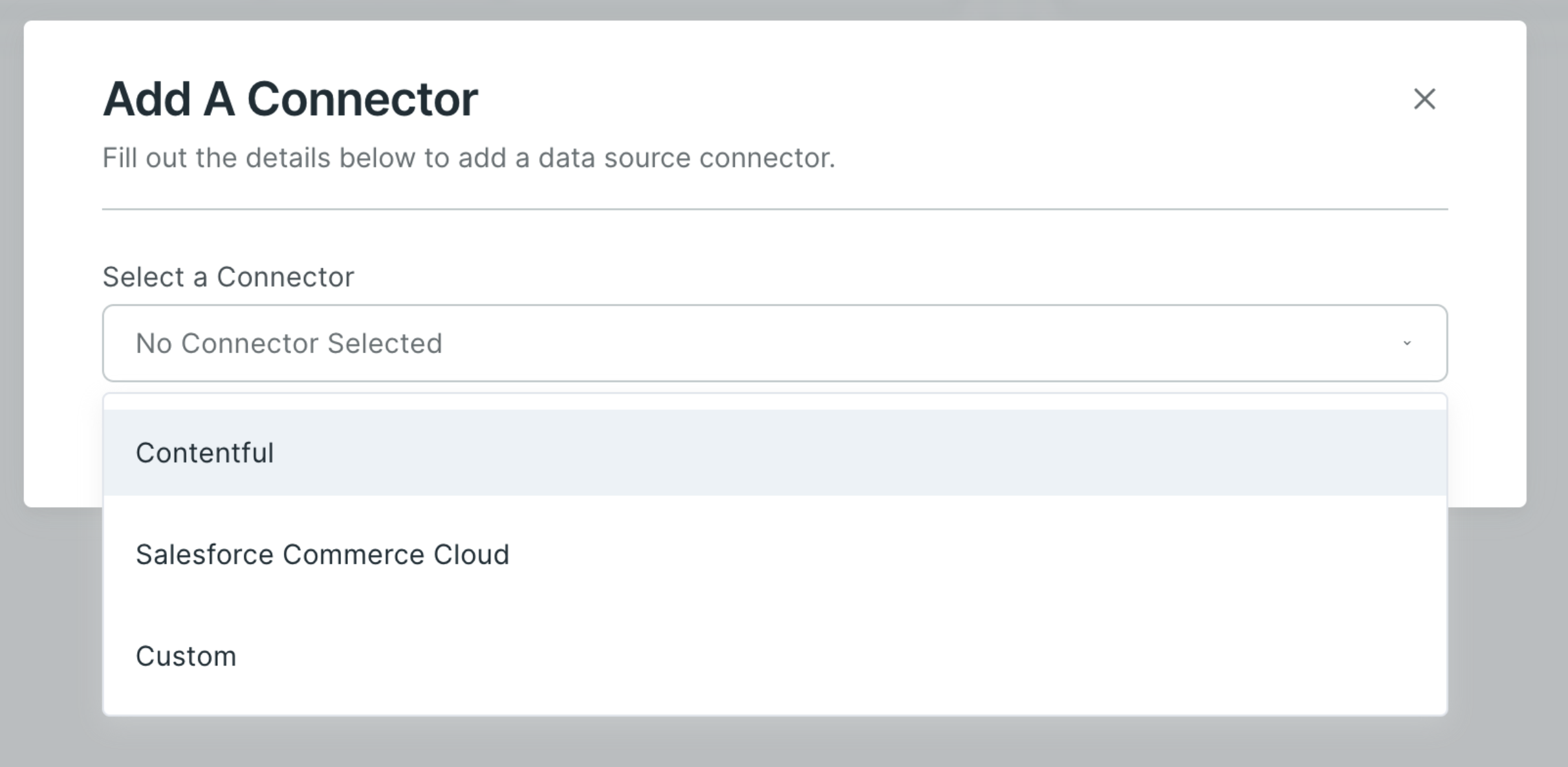
Enter the Contentful space's ID, the Environment, and the Delivery Token. Optionally, you can add the Webhook Secret and Preview Token to add Contentful preview data. The connector is now ready for action.
From a space:
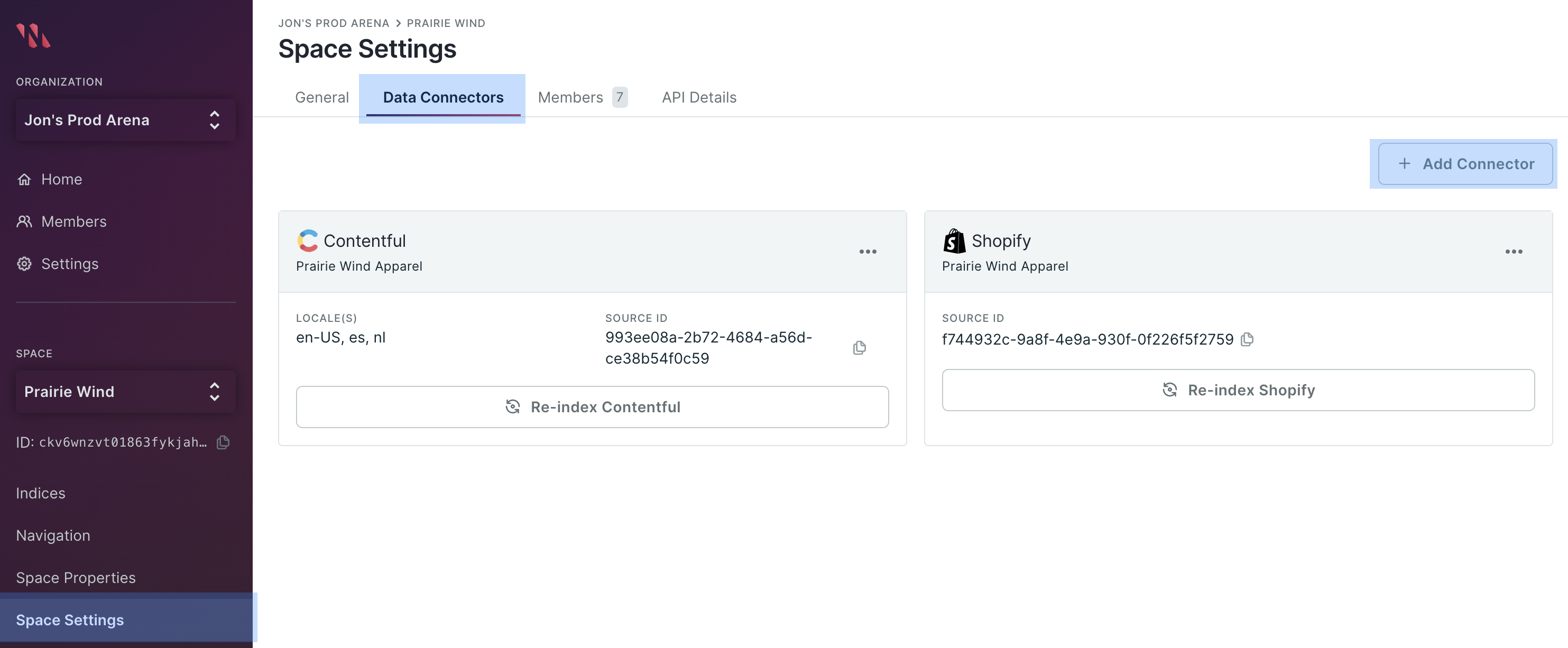
Select Space Settings from the primary navigation pane and select the Data Connectors tab. Next, click the Add Connector button in the top right of the UI.
From the modal, select "Contentful" in the dropdown.
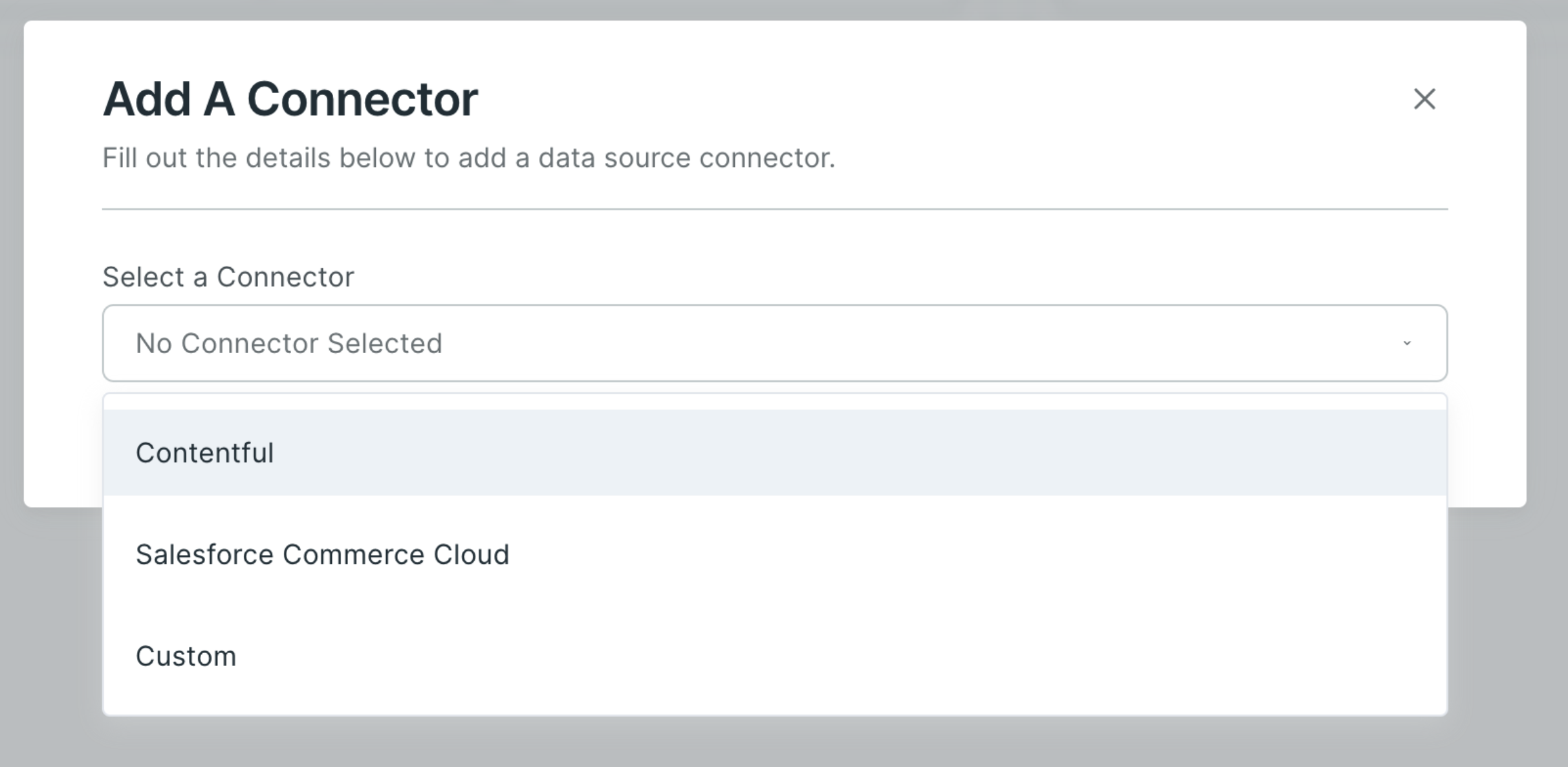
Enter the Contentful space's ID, the Environment, and the Delivery Token. Optionally, you can add the Webhook Secret and Preview Token to add Contentful preview data. The connector is now ready for action.
Run Initial Sync
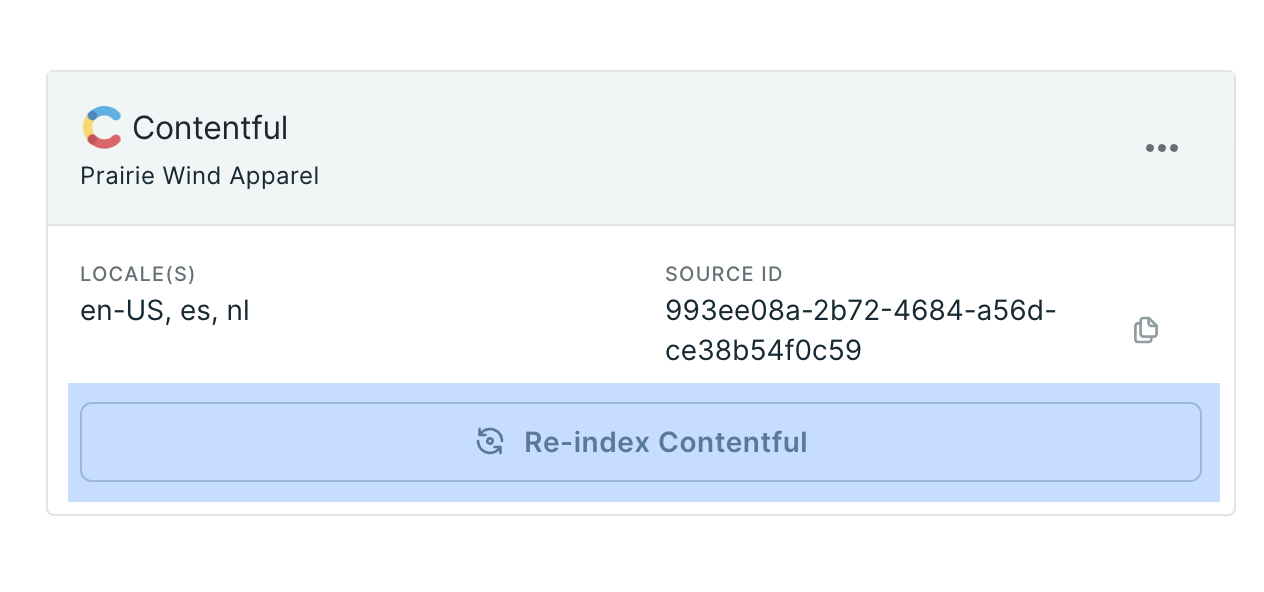
Once the connector is added, you'll now have the option to Re-Index the connector. Click the Re-Index button in the connector to ingest your Contentful data.
Once ingestion is complete, you can verify that your products and collections have been ingested adequately by visiting the appropriate tab in your space or by querying for the data using the Nacelle Storefront API.